Guide
Facebook Post Square size (1080×1080)
Best Facebook Post Square dimensions: 1080×1080 (1:1). Crop (fill) is recommended. Resize locally (no upload), export JPG/PNG.
Facebook1080×10801:1Crop first
Open the workflow
Quick tips
- Most common output for this guide: 1080×1080.
- Use Crop when the image should fill the target frame.
- Export JPG for photos, PNG for text-heavy or transparent assets.
Guide summary
Facebook
1:1
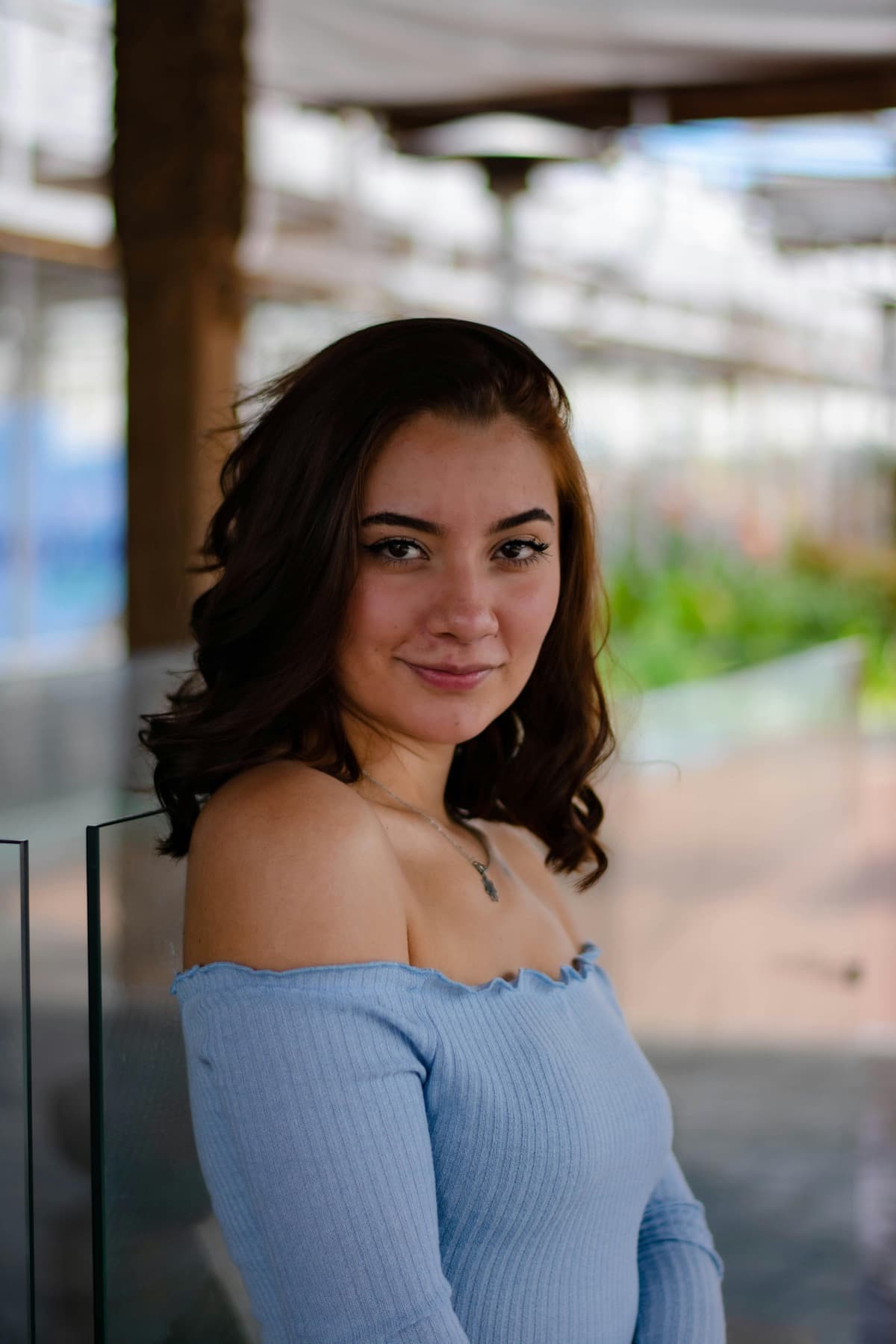
1080×1080
Crop
Guide focus
Facebook
Primary surface
Recommended mode
CROP
Fill the frame
On this page
TL;DR3 steps (using this tool)
TL;DR
- Size: 1080×1080.
- Ratio: 1:1.
- Format: JPG for photos, PNG for sharp text or transparency.
3 steps (using this tool)
- Upload your image.
- Choose Crop (fill) or Pad (fit). Crop (fill) gives a native full-frame look.
- Export JPG (photos) or PNG (text/transparency).
Quick tip: open this preset in the resizer and export in one click.
Related guides
Keep browsing the same workflow family.
Discord
1:1
128×128
Crop
Discord
Discord Profile Picture size (128×128)
Best Discord Profile Picture dimensions: 128×128 (1:1). Crop (fill) is recommended. Resize locally (no upload), export JPG/PNG.
Discord
1:1
512×512
Crop
Discord
Discord Server Icon size (512×512)
Best Discord Server Icon dimensions: 512×512 (1:1). Crop (fill) is recommended. Resize locally (no upload), export JPG/PNG.
Facebook
851:315
851×315
Pad
Facebook
Facebook Cover Photo size (851×315)
Best Facebook Cover Photo dimensions: 851×315 (851:315). Pad (fit whole) is recommended. Resize locally (no upload), export JPG/PNG.
Facebook
1.91:1
1200×628
Pad
Facebook
Facebook Event Cover size (1200×628)
Best Facebook Event Cover dimensions: 1200×628 (1.91:1). Pad (fit whole) is recommended. Resize locally (no upload), export JPG/PNG.
FAQ
Do you upload my images?
No. Processing happens locally in your browser. Your files are not uploaded.
What size should I use?
Use 1080x1080 (1:1).
Which export format should I use?
JPG for photos, PNG for text/logos or transparency, WebP for smaller files (if supported).
Crop vs Pad — what is the difference?
Crop fills the target size (may cut edges). Pad fits the whole image and adds background/space.
How do I protect text and logos?
Keep important content centered and avoid placing critical text at the edges.
Can I batch resize?
Yes. Use the Batch Resizer to apply the same size to many images.